
1. What you need to know 2. The benefits 3. Start configuring a package
1. What you need to know
- You can create different versions of one package.
- You can delete a package if it's not being used.
- You can edit a package if it hasn't been assigned to a patient.
- The service has to be registered in the *Charge Master II* with the following type of product: Package
2. The benefits
- Identification and creation of diverse packages in the organization.
3. Start configuring a package
Create a package following the next steps:
1. Open the window *Package and version*.
2. Click on the *New record* icon.

Create a new record.
1. Define the value, the package and click on the *Save* icon.
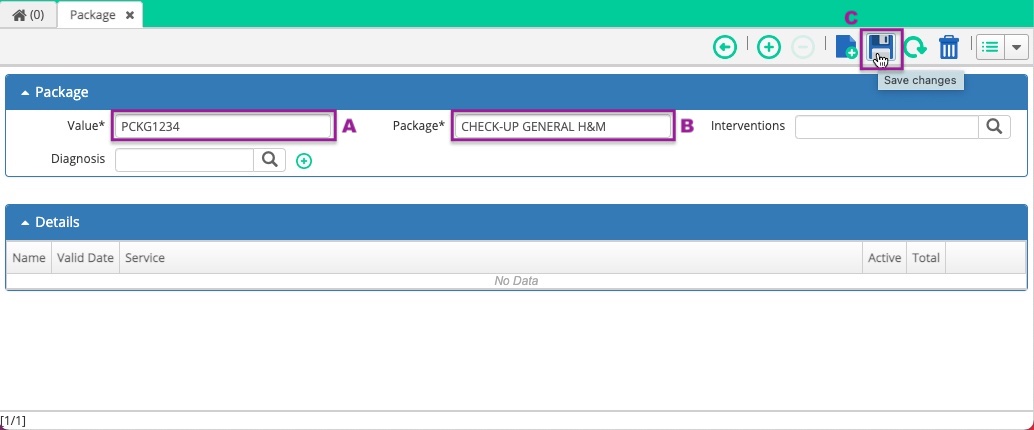
Creating the package.
1. Add the version of the package by capturing the service (you can add the service in the window Charge Master II), the version, and the expiration date; save the information.
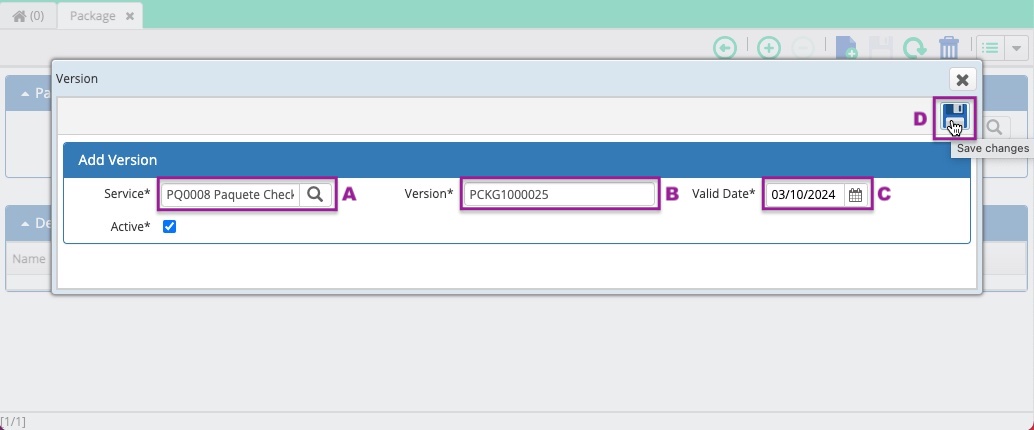
Adding the version to the package.
1. The system will display the alert message "A line of detail is required for the version of the package. Do you want to continue?"
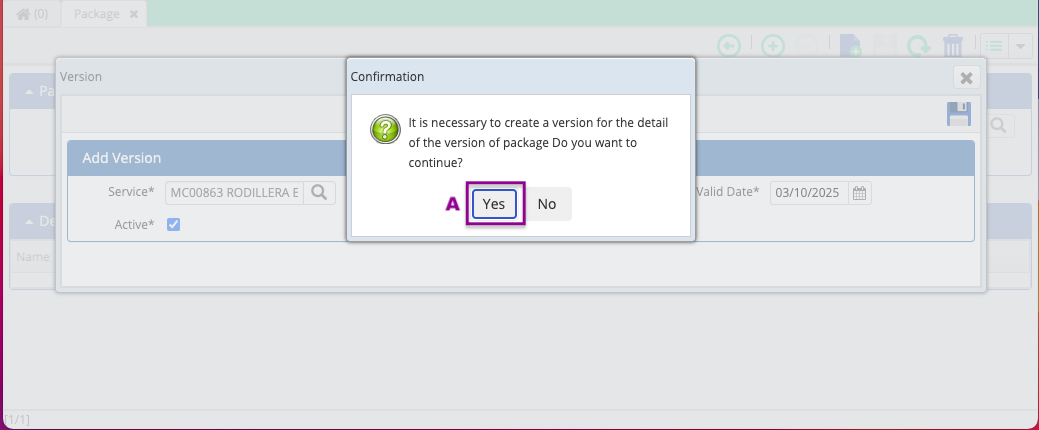
Alert message to add a line of detail to the version.
1. The system will open the window to let you add the detail to the package and you'll have the opportunity to add the products and services for the package; select the quantity, product, UOM and click on the ADD icon.
2. Save the information after finishing adding the products and services.
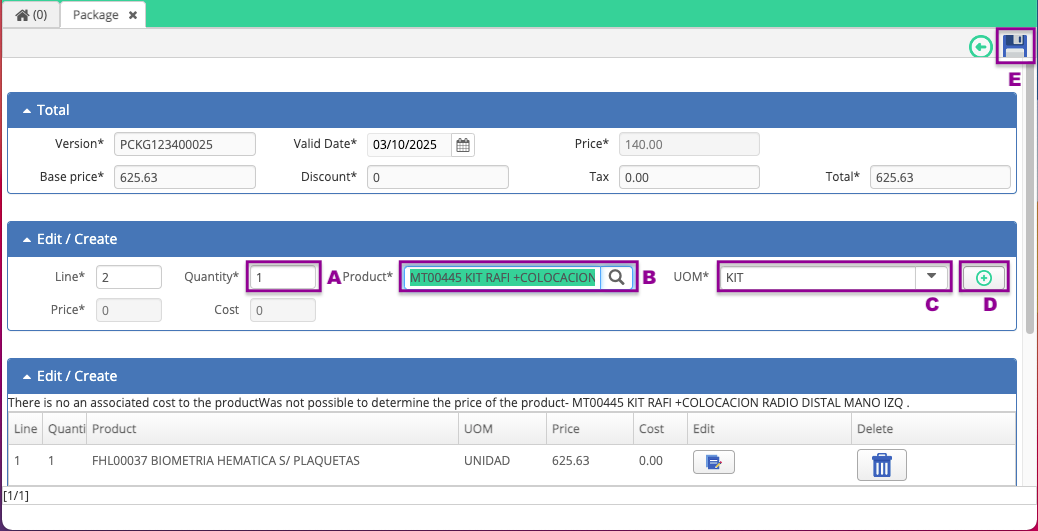
Adding the details to the package.
After finishing the steps listed above
You'll have created a package.
Congratulations!
Comments
0 comments
Article is closed for comments.