
1. What you need to know 2. The benefits 3. Start kardex report
1. What you need to know
The information comes from the following windows:
- Material receipt (purchases and refunds)
- Charges to patient encounter (sales and cancellations)
- Direct invoice (sales to general public)
- Return of tray
- Charge master II
- Inventory adjustment
- Internal use inventory
Query the information with the following parameters:
- Dates range (30 days maximum range)
- Warehouse
- Movement type
- Vendor/Debtor
- Vendor/Debtor listing
- Product category search
- Product category
- Product
- Products listing
The information that you can see is the following:
Service unit, warehouse, product code, product, unit of measure, initial quantity, purchase, returns without purchase, returns without sale, sales, stock reduction by product movement, stock reduction by product return, stock increase by product movement, stock increase by product return, inventory adjustment, inventory adjustment (negative), inventory adjustment (positive), internal use inventory, final amount, stock value and general stock value.
You can access to the Kardex report from the window Charge Master II.
2. The benefits
Query all the warehouses movements in the organization.
3. Start kardex report
1. Open the "Kardex report" window.
2. Select the parameters of the search:
Dates range
Warehouse
Type of movement
Vendor/Debtor (when selected it is added to the Vendor/Debtor listing)
Search by product category
Product category
3. Click the magnifying glass button.
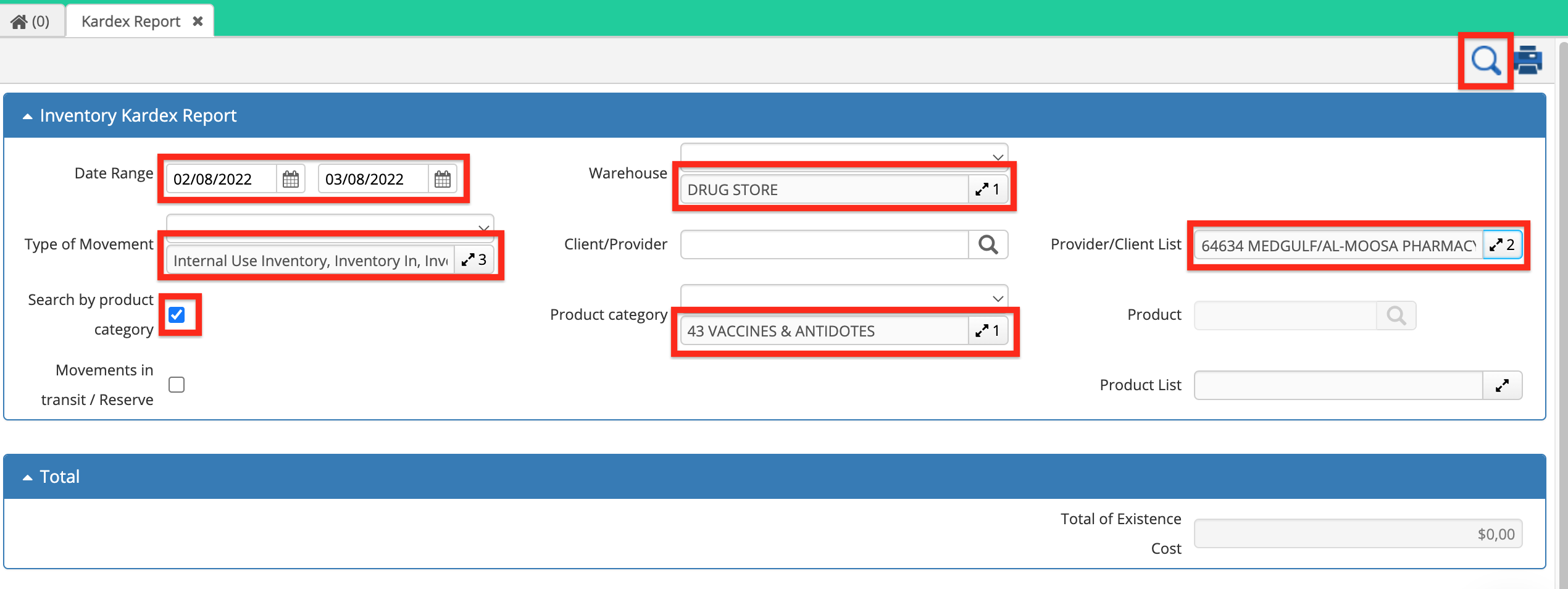
Select the filters.
Check the search results.
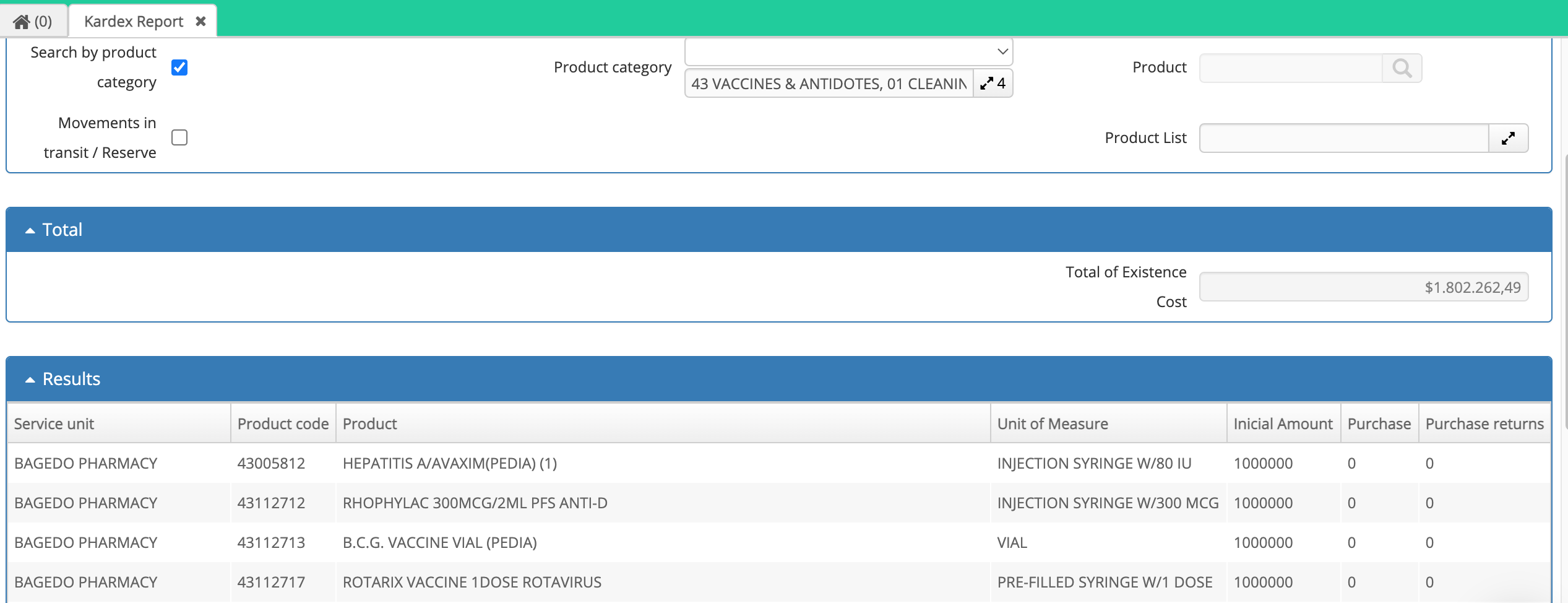
Search results.
After finishing the aforementioned steps.
You can see the information of the Kardex report.
Congratulations!
Comments
0 comments
Article is closed for comments.