
1. What you need to know 2. The benefits 3. Start an adjustment
1. What you need to know
1. The adjustment amount must be greater that 0 and must be different to the current one.
2. ** The "Valid from:" date field is editable and you can create and adjustment with previous dates to the last standard or average cost.
3. You must specify if the product is an item or service. Is you select "Item", the system will create an accounting journal entry. If you select "Service" the system won't generate an accounting entry, but create and save a document for audit purposes.
4. The new cost to be updated must be greater that 0 and must be different to the current one.
5. Have in mind that the just created cost adjustment for a product will be shown in the "Cost - Inventory Report" and also in the Kardex.
2. The benefits
- The access to modify standard and average cost of a product or service.
- To identify how the cost update affects the accounting.
- Up to date information in the "Cost - Inventory Report".
3. Start an adjustment
The following steps will help you learn how to update the type of cost.
1. Open the window "Inventory adjustment by cost".
2. Select the button "New record".
3. Fill in the required fields: Type of cost, valid date, type of service - item or service.
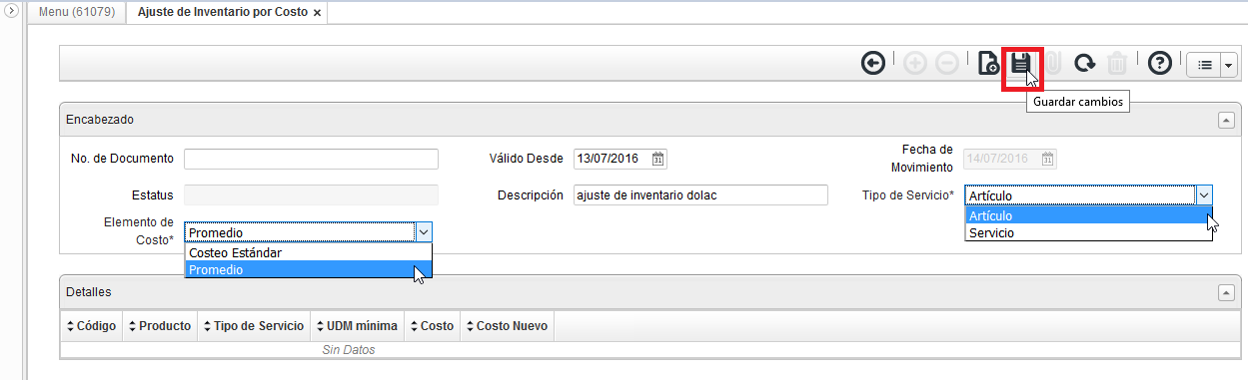
1. Save the header general information.
2. Click on the "Add" button.
3. Search and select the product(s) by adding the new cost amount.
4. Press the "Enter" key or click on the "Save" button and continue adding more records (products/services) as per the requirement.
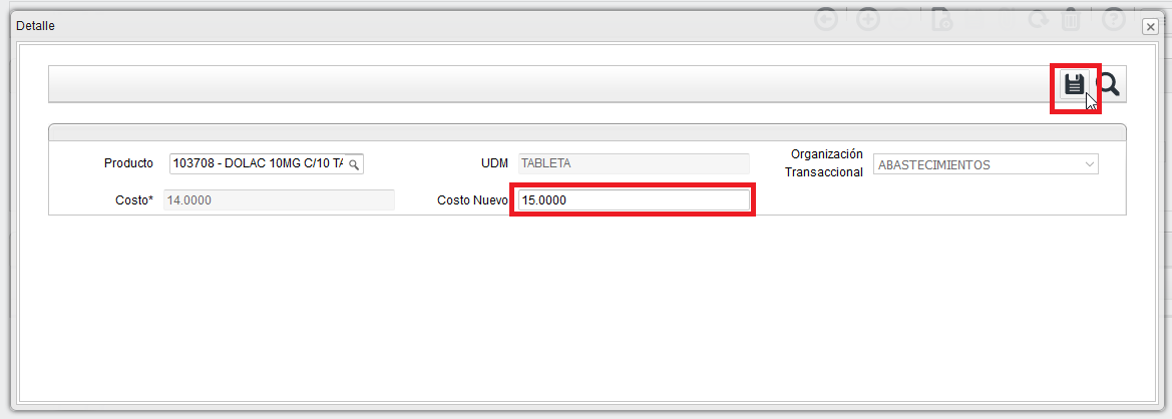
1. Close the "Details" window.
2. Open the context menu and select the option: "Document action".
3. From the popup window select the option "Complete".
4. The end.
After finishing the aforementioned steps.
You will see the confirmation message: "This document has already been completed."
Congratulations! You've updated the products/services cost successfully.
Comments
0 comments
Article is closed for comments.