
1. What you need to know 2. The benefits 3. Start inventory adjustment
1. What you need to know
1. The system will take the transactional organization with which you find yourself logged, you can change the warehouse and the transactional organization will change automatically.
2. You can delete an inventory adjustment only if the status is not "complete".
3. You can remove a line in the inventory adjustment only if the status is "draft".
4. You can print the report of the inventory adjustment sorted alphabetically by warehouse, product number, product name, etc.
5. To perform an inventory adjustment by QR you must install the application ELO in your Android cellphone.
6. You can import the same exported file from you inventory adjustment.
2. The benefits
- To know the actual stock available in the warehouse after physical counting is done.
3. Start inventory adjustment
Create an inventory adjustment by following the steps below:
1. Open the window "Inventory adjustment".
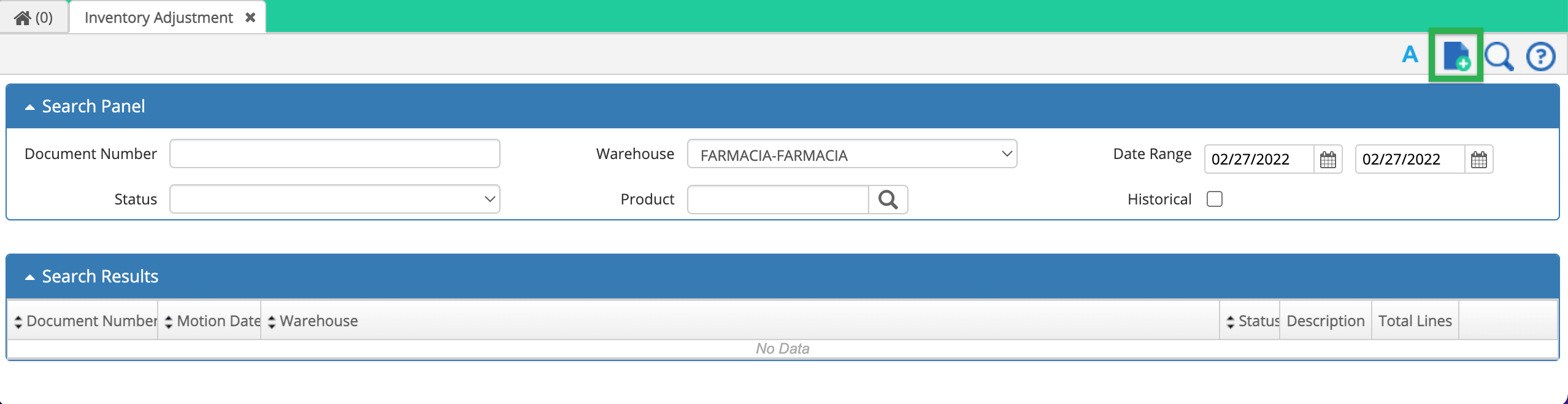
Create a new inventory adjustment.
1. Add a description in the header form, select a warehouse, date of movement, save the information and add the lines to the inventory.
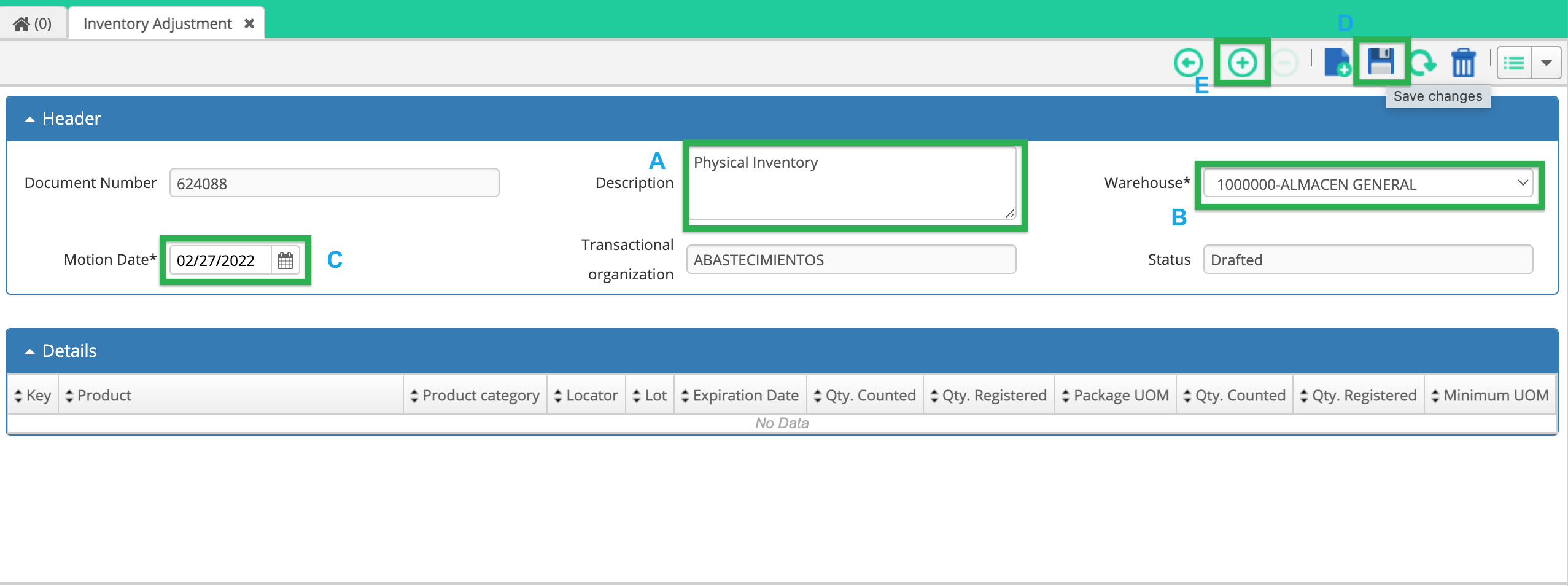
Save the header and add lines.
1. Select the locator; you can add lines per product (one by one), category or operator (> 0, < 0, = 0, etc.), the system will alert you with the following message "An error occurred while adding a new detail line because there were not any products selected. Do you want to continue without the parameter?", click on "Yes" to continue.
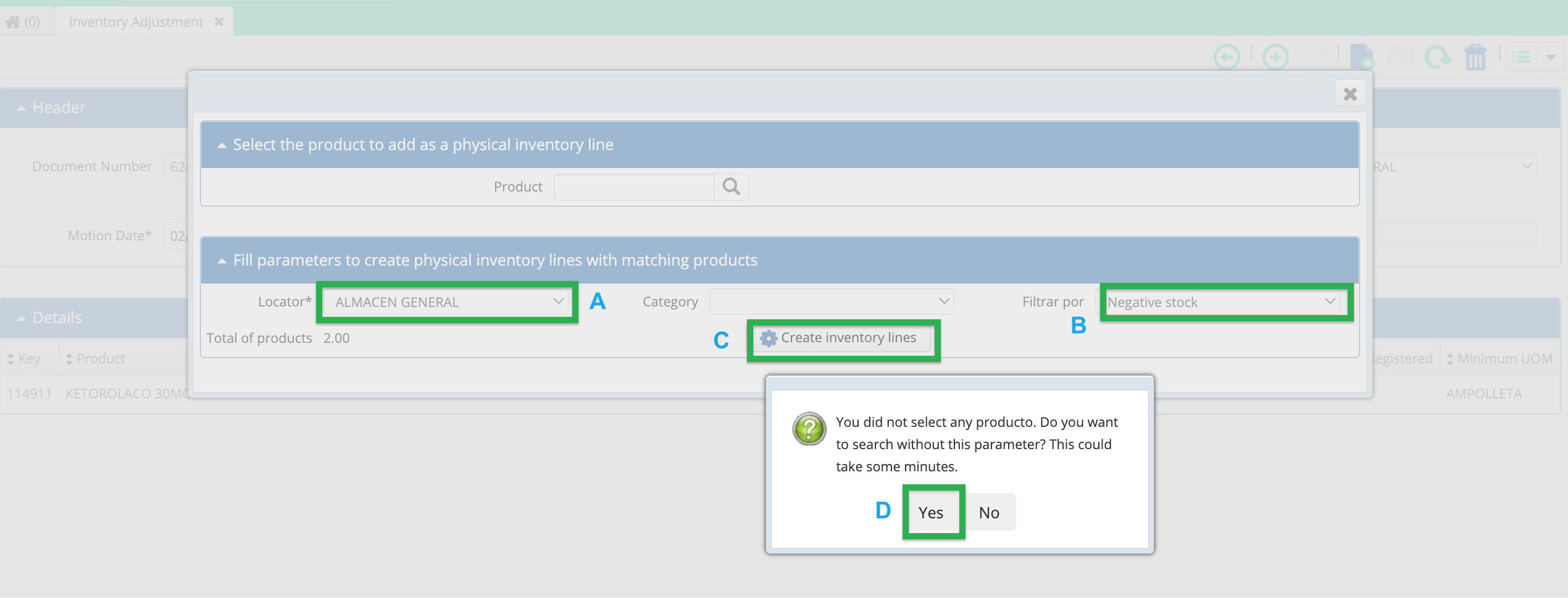
Add lines using the filters.
1. Once the lines have been added, click on the context menu and select "Start inventory".
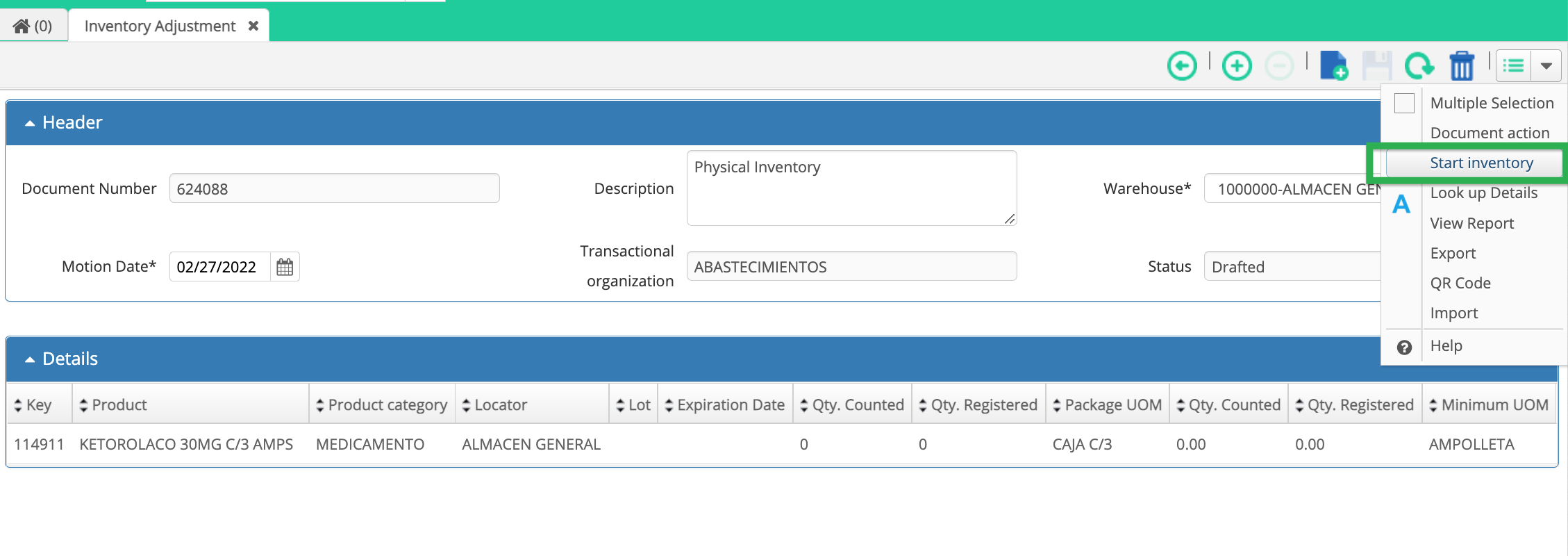
Start inventory.
1. The system will display the message "The physical inventory has started, during this process the document will remain "In Progress"." Select Ok to continue."
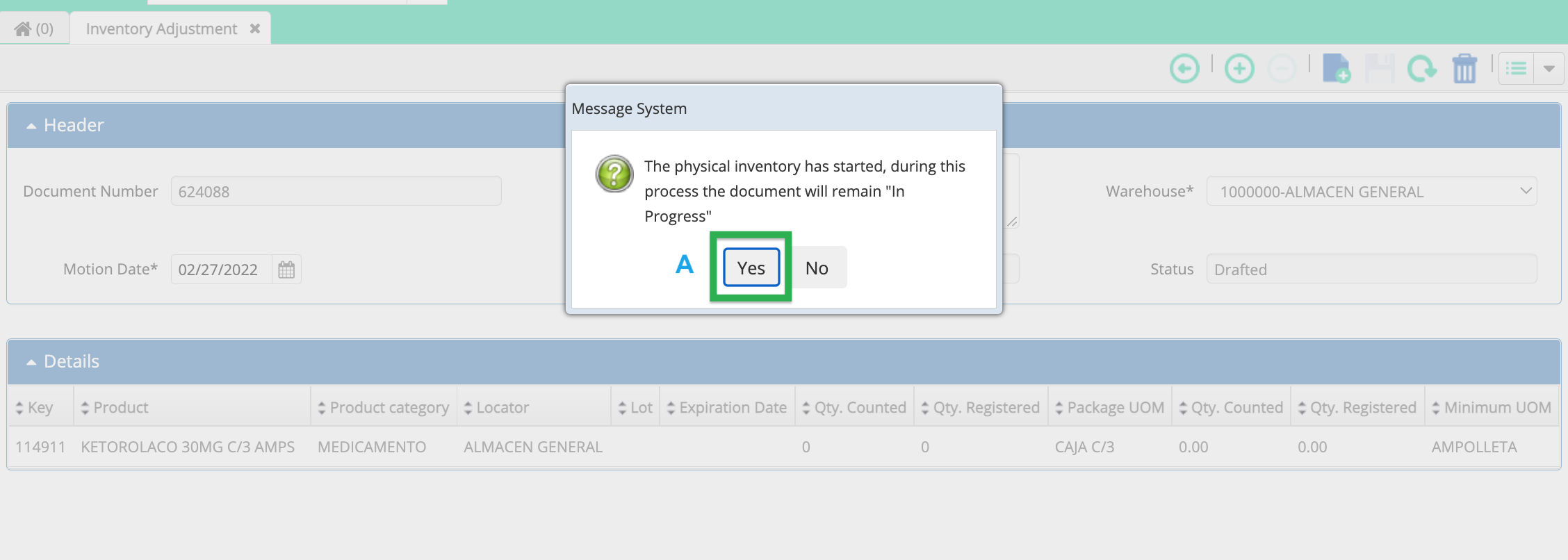
A message appears telling you the inventory has started.
1. Open the context menu and select the option to print the inventory (pdf, csv or xls).
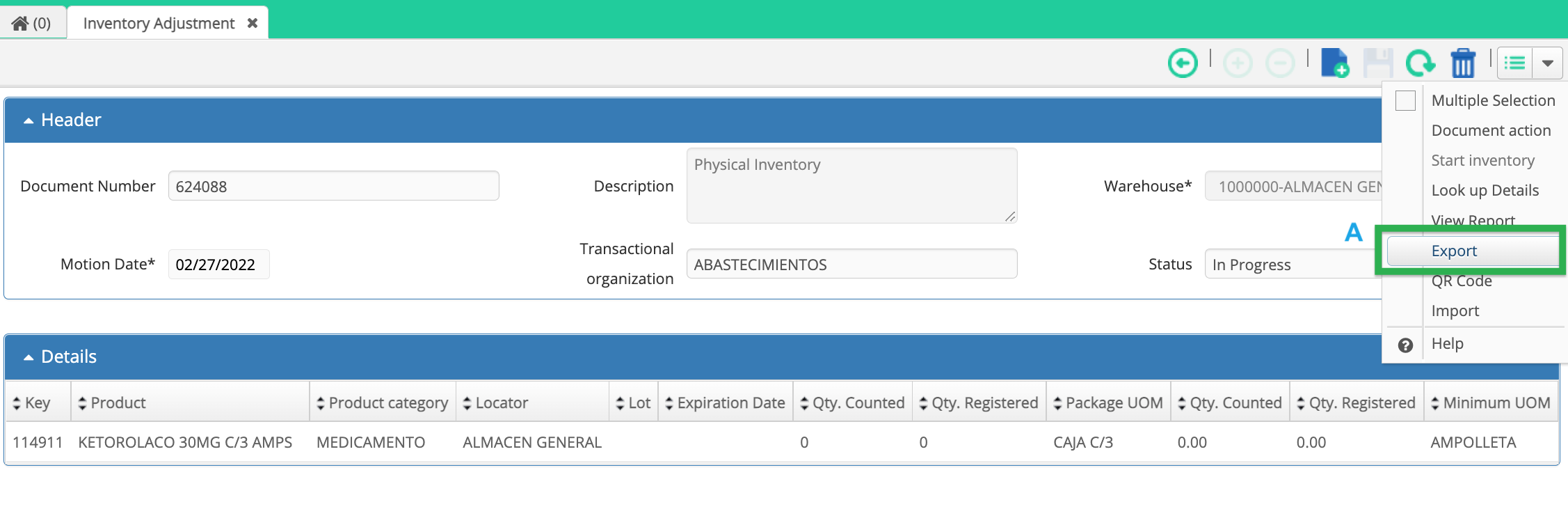
Export to print the inventory.
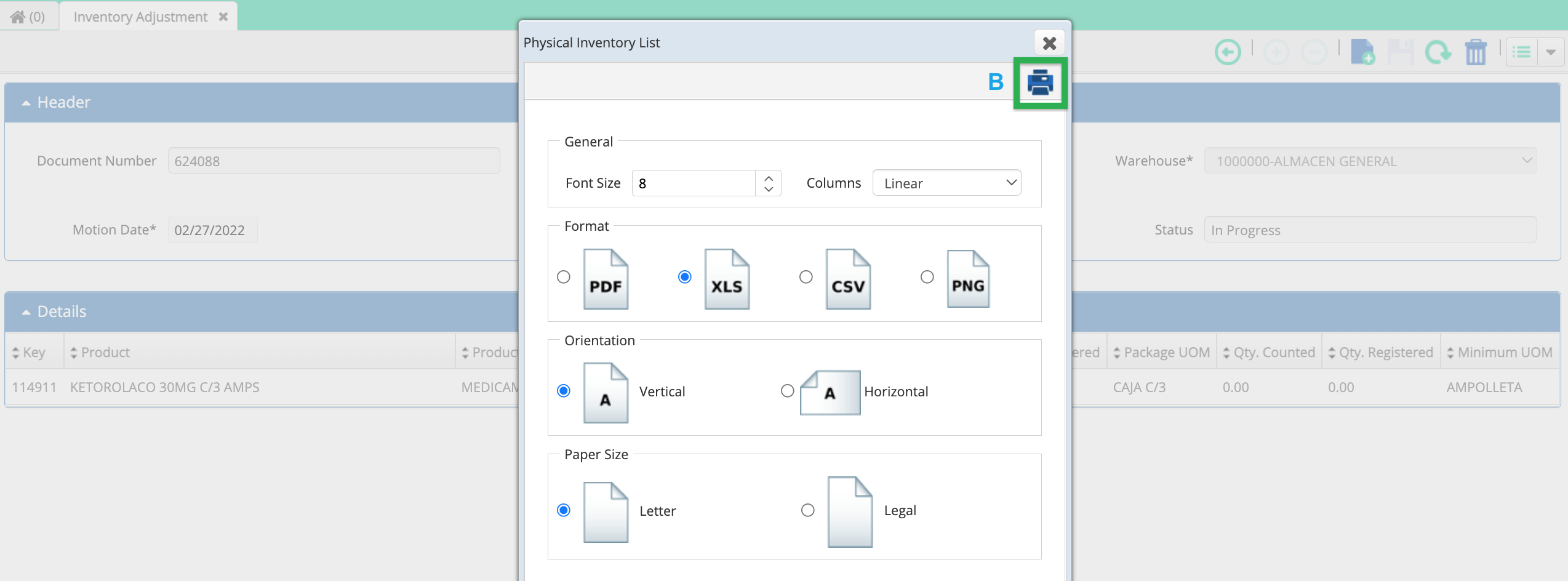
Select the print format.
1. Enter the physical inventory counts of the minimum and pack unit of measure.
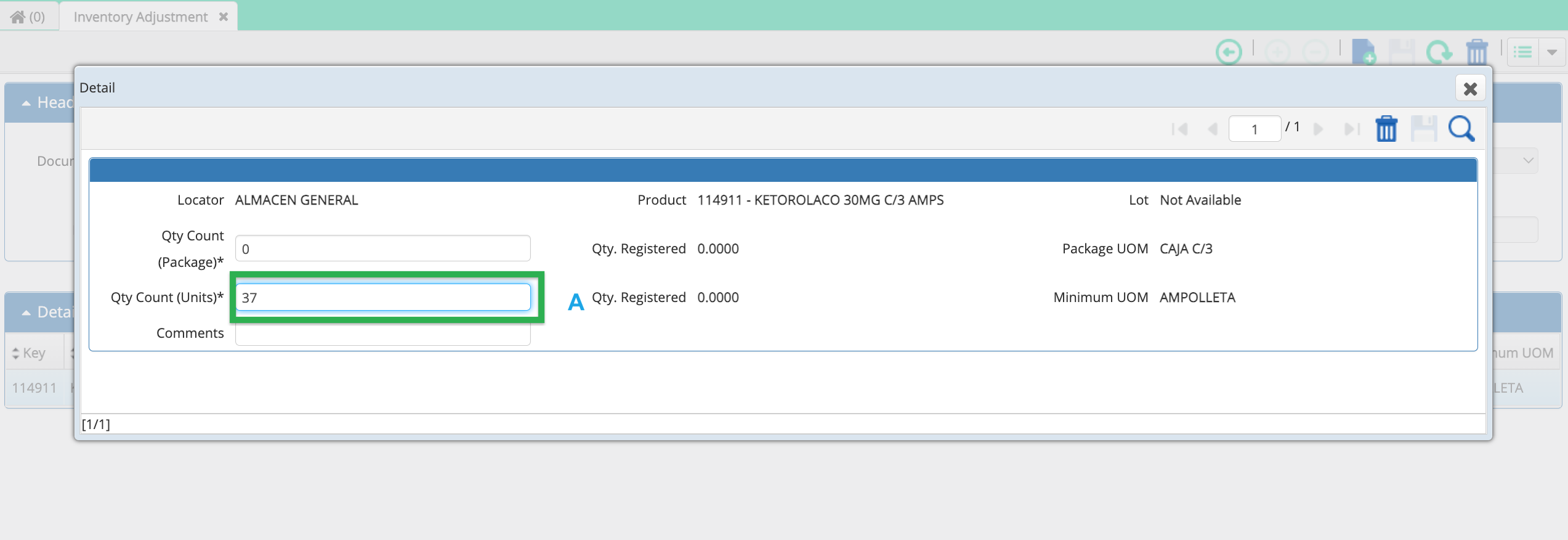
1. Once the physical inventory quantities have been registered open the context menu and complete the document.
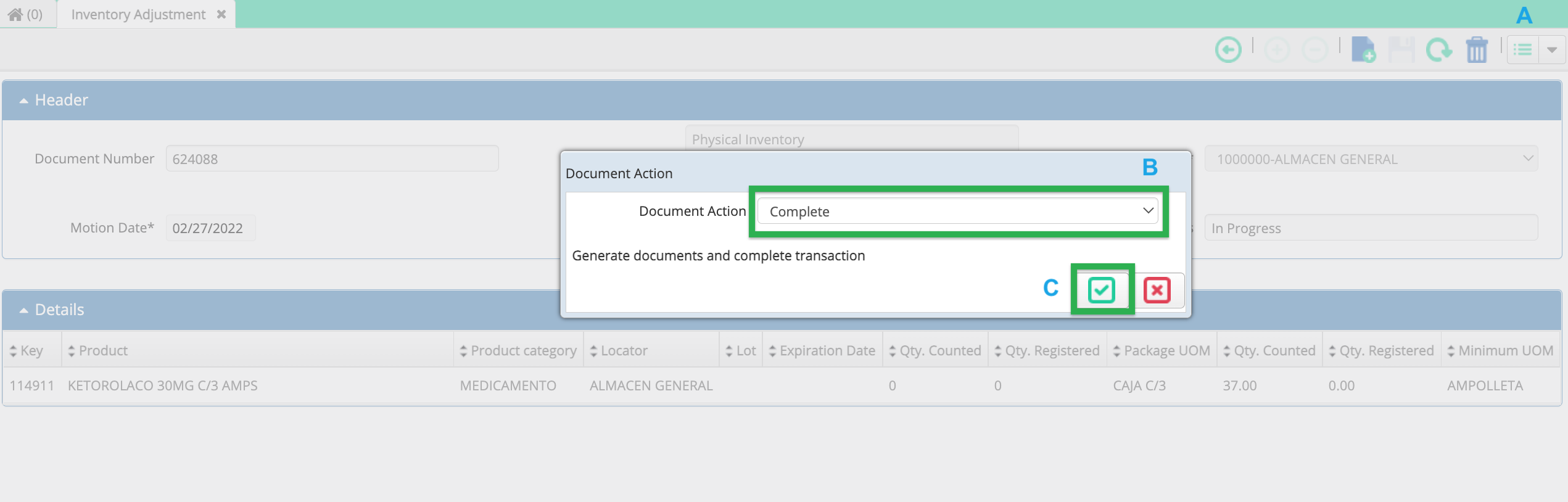
1. If there are differences between the warehouse cycle counting process and the physical inventory count the system will perform an inventory adjustment automatically.
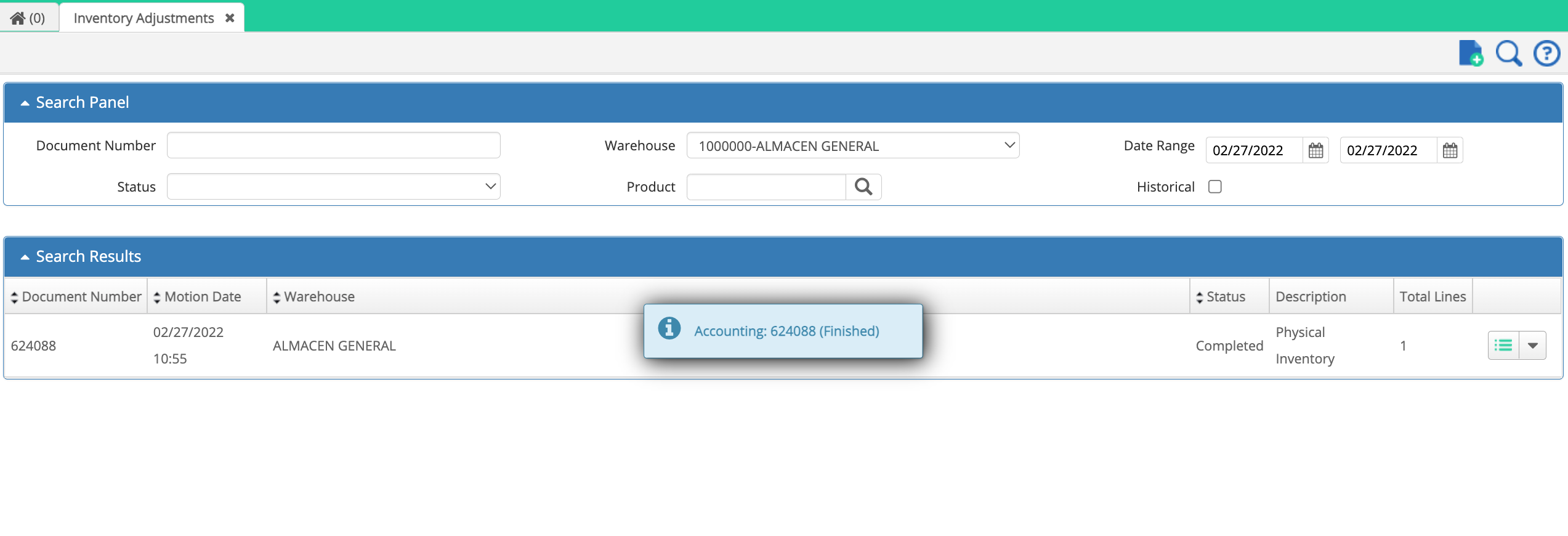
After finishing the aforementioned steps.
You've done an inventory adjustment.
Congratulations!
Comments
0 comments
Article is closed for comments.